Selenide Project and Test Setup

In this post, we will look at how to setup Selenide project in our machine and also how to setup our first test. One of the best parts about using Selenide is that you can get start with writing your first test in under 10 mins. Let's take a look at that -
Pre-requisites:
- Java Installed
- Any IDE of your preference: I will be using IntelliJ for this series
Check out the video below to learn how to Setup Selenide Project and Test -
Selenide Project Setup
To get started with Selenide, we will first create a new Maven project in the IDE. Once the project is created, we will need to do the following steps -
Add Dependencies to POM.xml -
- Selenide:
<dependency>
  <groupId>com.codeborne</groupId>
  <artifactId>selenide</artifactId>
  <version>6.5.0</version>
  <scope>test</scope>
</dependency>
- TestNG: testing framework
<dependency>
  <groupId>org.testng</groupId>
  <artifactId>testng</artifactId>
  <version>7.5</version>
  <scope>test</scope>
</dependency>
That's all you need in terms of setting up project. Rest, Selenide will take care of on its own.
Test Setup
Now, let's create our first Selenide Test. To do that, simply create a new Java test file and add in the following code -
import com.codeborne.selenide.WebDriverRunner;
import org.testng.annotations.Test;

import static com.codeborne.selenide.Selenide.*;
import static org.testng.Assert.*;

public class HomeTest {
    @Test
    public void testPageUrlAndTitle() {
        // Open page url
        open("https://practice.automationbro.com/");

        // Assert the url matches
        String url = WebDriverRunner.url();
        assertEquals(url, "https://practice.automationbro.com/");

        // Assert the title matches
        String title = title();
        assertEquals(title, "Practice E-Commerce Site – Automation Bro");
    }
}
In the test above, we are doing the following steps -
- Importing all the necessary dependencies
- Created a test method to verify the page url and the title
- Open the page url using the in-built
openmethod - Then assert the url and the title of the page
Run Selenide Test
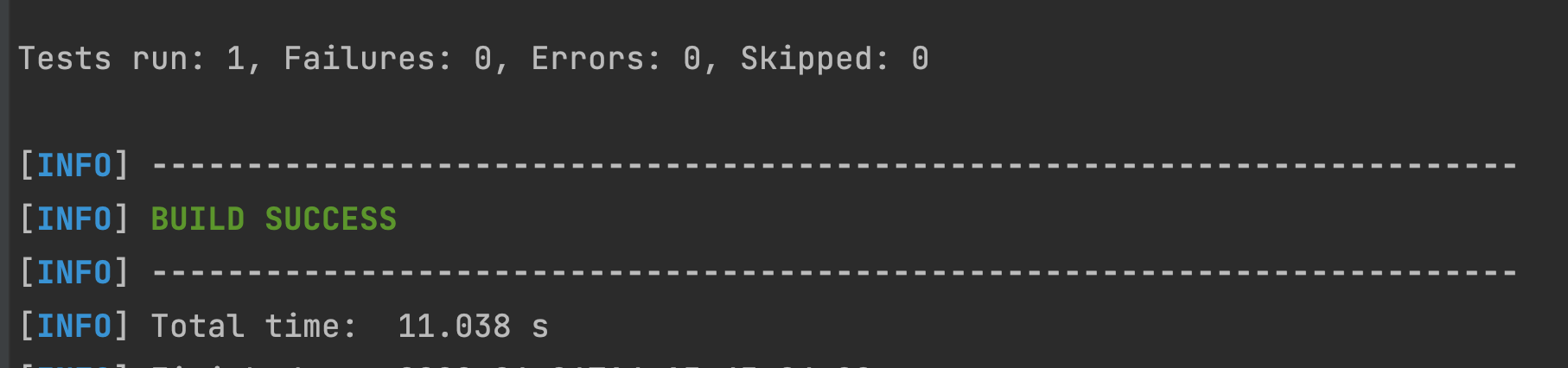
To execute the test, you can run it via the maven test command - mvn test. Selenide will do the following -
- Spin-up chromedriver
- Start the test session
- Execute the test
- Stop the test session
- Close the browser
You do not have to worry about setting up your driver or handling the opening/closing of the driver. All of this gets taken care of by Selenide and you can focus on writing beautiful tests.
Hope you guys liked this article!
Want to learn more?
Check out our courses to master test automation and advance your career.
Explore Courses